How to import an indicator into NinjaTrader 8
An indicator for NinjaTrader 8 arrives as a .zip file, which NinjaTrader calls a NinjaScript Archive. You import that file once, from the Control Center, and then add the indicator to each chart from the Indicators window. Here are the clicks for both, what the messages along the way mean, and how to take an indicator out again.
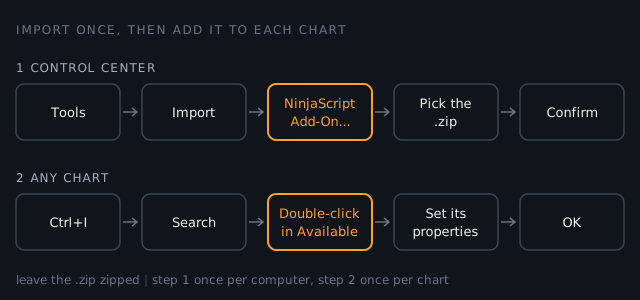
Import the .zip from the Control Center
Save the file somewhere you can find it. There is no need to unzip it: the import takes the .zip itself, not the files inside it.
- In the Control Center, open the Tools menu, then Import, then NinjaScript Add-On.
- Pick the indicator's .zip file.
- Confirm the import. If NinjaTrader asks about replacing a file, the section below says which answer you want.
In NinjaTrader 8.1.6 the menu item reads NinjaScript Add-On. Some pages of NinjaTrader's own help guide still call it NinjaScript, so if you are following those, it is the same item.
Only import from someone you trust. NinjaTrader's help guide says so, and the reason is plain: an indicator is code, and it runs inside the same NinjaTrader that holds your connection to your broker. A free file from a forum post gets the same access as one you paid for.
Put it on a chart
Importing makes the indicator available. It does not put it on any chart.
- Open the Indicators window from the chart: press Ctrl+I with the chart selected, click the Indicators icon on the chart toolbar, or right-click an empty part of the chart and choose Indicators.
- Type part of its name in the search box at the top to filter the list.
- Double-click it under Available. It moves to Configured, and its settings appear on the right.
- Set what you need and press OK.
To start the next chart from the same settings, save them as that indicator's default. NinjaTrader then recalls them every time you add it.
When NinjaTrader asks to replace a file
If a file in the archive is already on your computer, NinjaTrader names it and asks whether to replace the existing file. The question comes in two versions, and they mean different things.
- The file already exists on your PC. You have imported this indicator before, or something else with a file of the same name. Replacing it is right when you are installing an update from the same maker.
- The file on your PC is a newer version than the one in the archive. Replacing it takes you back a version. Say no unless that is what you meant to do.
When the import goes wrong
- "The NinjaScript Archive File does not contain any NinjaScript files." The .zip you picked is not a NinjaTrader 8 export, or it is the wrong file from the download. Ask the maker which file to import.
- It was written for NinjaTrader 7. NinjaScript changed between versions 7 and 8. The three methods a version 7 indicator used to set itself up and shut down were replaced by one, for a start. A version 7 indicator has to be rewritten, so ask its maker for the NinjaTrader 8 file.
- An error compiling the import. NinjaTrader prints the reason after the message. Send the maker the whole message rather than a summary of it.
Removing an indicator
Taking an indicator off a chart and taking it out of NinjaTrader are two separate jobs.
- Off one chart: click the indicator on the chart and press Delete. Or select it under Configured in the Indicators window, choose Remove, then OK.
- Out of NinjaTrader, when its code is hidden: it came as a compiled assembly. In the Control Center, open Tools, then Remove NinjaScript Assembly.
- Out of NinjaTrader, when it came as source code: open the NinjaScript Editor from the Control Center's New menu, find the indicator in the Indicators folder of the NinjaScript Explorer, right-click it and choose Remove.
If NinjaTrader says you must remove all dependencies first, another script you have installed uses code from this one, and has to go first. After a removal it may ask you to open a NinjaScript Editor and press compile. Do that, and deal with any errors it lists, so the scripts that are left still build.
Then make it earn its place
An indicator is worth keeping when it changes a decision you would otherwise make worse. The record of those decisions is your trades: export them from the Trades grid and read them against the numbers that matter, before and after.
Sources checked
- NinjaTrader 8 Help Guide, Import: the menu path, which it gives as Tools, Import, NinjaScript, and the instruction to import archives only from a trusted source.
- NinjaTrader 8 Help Guide, Working with Indicators: the ways to open the Indicators window, adding by double-click under Available, the Configured list, removing an indicator from a chart, and saving settings as the default.
- NinjaTrader 8 Help Guide, NinjaScript Explorer: the right-click Remove, which removes a script file from the system. The NinjaScript Editor page has it opening from the Control Center's New menu.
- NinjaTrader 8 Help Guide, Export: an archive holds either source files or a compiled assembly that hides the code.
- NinjaTrader 8 Help Guide, Code Breaking Changes: the NinjaScript changes from version 7 to 8, including Initialize(), OnStartUp() and OnTermination() giving way to OnStateChange().
- NinjaTrader 8.1.6.0 as installed on our machine. Its menu items read NinjaScript Add-On and Remove NinjaScript Assembly, and the replace, archive, compile and dependency messages described above are its own wording.
Related guides
How to export your trades from NinjaTrader 8
Three exports look alike and only one has a row per trade. Get the right file, and spot the two you did not want.
Trading hours and session templates
The trading day starts the evening before. What that does to VWAP, to yesterday's high, and to every daily reset.
How to use Market Replay in NinjaTrader 8
Practise on a past session at your own speed, and know where a replay is kinder than the market.